Having a reliable converter of PDF to Office documents should be a basic must-have tool for everyone working with a heavy load of files on a daily basis. Although, PDF documents belong to a group of the most popular file formats sent by email, trying to edit them can become a serious nightmare. Now, you can easily convert PDF to Word to make your edits.
If you work in the office environment, you have probably had to re-write a few PDFs in an old-fashioned way. Do you remember when you received a PDF document that you needed to edit in Word? You didn't want to bother the sender (maybe he was an important client), so you had no other choice than to manually copy-paste the entire text... just because of one or two minor changes. You may agree that this process is an extremely time-consuming, tiring and highly inefficient way of working with PDF documents.
Key Takeaways
- Convert PDF to Word in one click and edit documents instantly without retyping.
- Preserve original layout, fonts, and formatting even with complex files.
- Convert scanned PDFs using OCR for accurate text extraction.
- Use iLovePDF on Web, Desktop, and Mobile to work anywhere.
- OCR turns scanned pages into editable text, on free and Premium accounts alike.
Can you turn a PDF into an editable Word file?
Yes. iLovePDF converts any PDF into an editable .docx in one click, keeping the fonts, images and layout of the original file, so you can start editing instead of retyping. Whether you are a student handing in coursework or working through contracts in the office, the PDF to Word converter hands you back a document you can change in Microsoft Word or any other word processor.
You can also convert several files in a single task with batch conversion, a Premium feature. Free accounts convert one file at a time, and Premium adds higher limits and faster processing. Meet your web-based converting tools and overcome your document challenges in no time. Drag and drop documents straight to each tool´'s page or import them from your Google Drive and Dropbox account.
Fortunately, working with a reliable PDF to Word converter can save you a lot of time, stress and headache. iLovePDF enables you to easily turn PDF files into Microsoft Office format in just one click. Securely extract all content from any PDF document and turn it into an editable Word text. What's truly priceless is the overall outcome; you will be able to preserve fonts and retain formatting of your original PDF document. The content will be converted with high accuracy, making it easier for you to edit, remove or replace any text or image retrieved from the PDF to Word conversion.
Edit Scanned Documents with OCR-Powered Converter
There might be time, during your editing efforts, when you receive/work with PDF documents containing scanned text. Imagine you need to edit and digitalize printed lease contract with up-to-date information. This is a moment to face the challenge of finding a powerful PDF to Word converter that can extract information from scanned documents for editable purposes. The vast majority of office and school scanners are programmed to save all scanned documents into PDF format. But what if you need to edit something in the document? - the answer is OCR Technology.
The term OCR scanner or Optical Character Recognition Technology has been around for more than 100 years, but not everyone is familiar with its benefits for digital-savvy users of the 21st century. iLovePDF supports PDF to Word conversions empowered by OCR software for text recognition in paper-based documents. The powerful technology turns scanned text and images to Word/DOCX formats. You can edit any text inside a converted document within a chosen word processor.
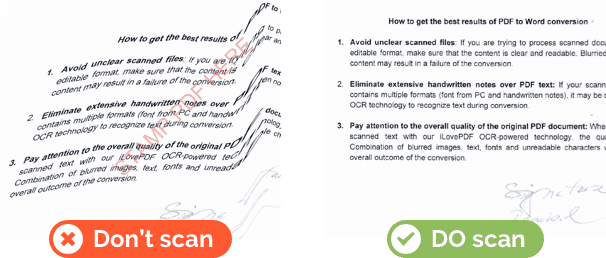
- Avoid unclear scanned files: If you are trying to process scanned documents into an editable format, make sure that the content is clear and readable. Blurry, out-of-focus content may result in a failure of the conversion.
- Eliminate extensive handwritten notes over PDF text: If your scanned document contains multiple formats (font from PC and handwritten notes), it may be difficult for the OCR technology to recognize text during conversion.
- Pay attention to the overall quality of the original PDF document: When you convert scanned text with iLovePDF OCR-powered technology, the quality matters. A combination of blurred images, text, fonts and unreadable characters will affect the overall outcome of the conversion.
How to Convert PDF to Word without OCR
- Navigate to our PDF to Word converter.
- Select the file you want to convert. If your PDF contains scanned pages, switch on OCR so the converter reads the printed text instead of copying it as an image.
- Click the Convert to Word button.
- Download your converted file to your computer or save it to DropBox or Google Drive.
How to Convert PDF to Word with OCR
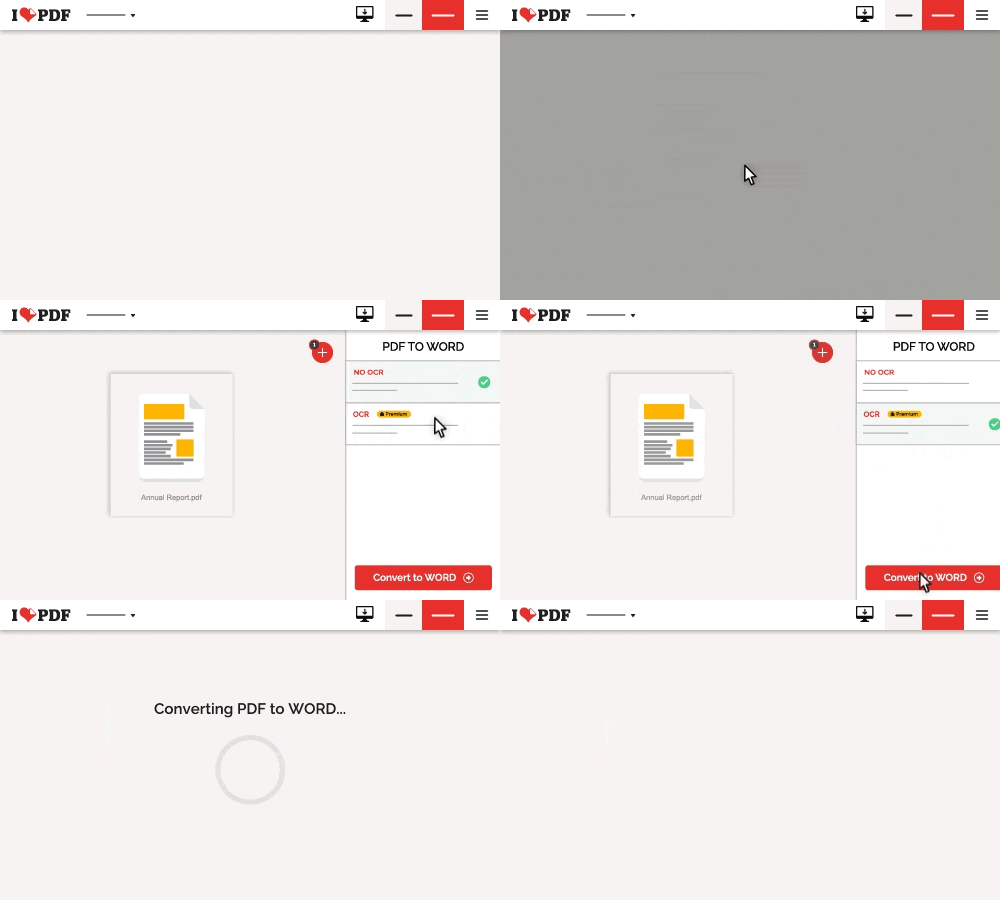
- Navigate to our PDF to Word converter.
- Select the file you want to convert to Word.
- If the file contains any scanned pages, select OCR from the menu bar on the right. OCR is available on free accounts, and Premium raises your limits and processes files faster.
- Click the Convert to Word button.
- Download your PDF to Word converted file. You can save your document to DropBox or Google Drive.
- Once you have made your edits, turn the document back into a shareable PDF with the Word to PDF tool.
Can I convert PDF to Word offline?
Yes. iLovePDF Desktop converts PDF to Word on your own computer, so large files and long documents are not affected by your connection. It runs on Windows and on macOS.
On the move, the iLovePDF Mobile app converts PDF to Word on iOS and Android, so you can turn a document into an editable file from your phone or tablet and carry on from there.

FAQs
1. Why convert a PDF to Word?
PDFs are still the global standard for sharing documents, whereas Word is best for editing. Converting ensures you can update CVs, forms, reports, and scanned files without rewriting everything.
2. How does iLovePDF convert PDFs to Word?
Upload your file to the PDF to Word tool and click convert — the text and formatting will appear in an editable DOCX.
3. Can iLovePDF convert scanned PDFs to Word?
Yes. iLovePDF uses OCR technology to extract text from scanned pages, letting you edit printed documents digitally.
4. Is iLovePDF free to use?
Yes. You can convert PDFs to Word for free, OCR included. iLovePDF Premium adds batch conversion, higher limits and faster processing for heavy users.
5. How secure is iLovePDF?
Files are encrypted with SSL and automatically deleted shortly after processing. iLovePDF follows ISO 27001 standards and GDPR compliance to protect user data.
6. How do I convert multiple PDFs to Word at once?
Use batch conversion via the Premium plan to save time when processing large document volumes.
7. Can I convert PDF to Word on my phone?
Yes — download the iLovePDF mobile app on iOS or Android to convert files on the go.
8. Does iLovePDF work offline?
Yes. The iLovePDF Desktop version allows PDF-to-Word conversion without an internet connection.
В полной безопасности
- Независимо от того, какой инструмент вы используете, мы предоставляем пользователям сквозное шифрование, чтобы обеспечить максимальную защиту от кражи или перехвата ваших документов.
- Любой документ, загруженный в нашу систему, автоматически удаляется через 2 часа, чтобы предотвратить несанкционированный доступ третьих лиц.
- Все наши серверы защищены и находятся под юрисдикцией европейского законодательства, одного из самых требовательных в мире.


