How to download a PDF from a link
Use this link to PDF converter to easily convert URLs into high-quality PDFs
To download a PDF from a link, paste the URL into iLovePDF's HTML to PDF tool, adjust the page settings, and click Convert to PDF. It takes 4 steps and works for any article, tutorial, blog post, or research paper you want to keep.
Quickly download a PDF from a link with this free online tool. Downloading useful content as a PDF is a great way to access it offline or share it with others without worrying about broken links or changes to the original page.
Key takeaways
- Save any webpage, article, or online document as a PDF in just a few clicks using iLovePDF.
- Customize screen size, page margins, and orientation to create high-quality, professional-looking PDFs.
- Block ads and remove pop-ups for clean reading or offline saving.
- Convert links right from your browser, a practical option for students, researchers, and professionals.
- Keep pages available forever, even if links break or content changes online.
- Get the key points of a long saved article with the AI Summarizer, or read it in another language with Translate PDF.
How do you download a PDF from a link?
You can turn any link into a PDF in 4 steps with iLovePDF's free HTML to PDF tool:
- Go to the HTML to PDF tool.
- Paste the URL you want to download as a PDF.
- Adjust the tool settings to your requirements.
- Click Convert to PDF.
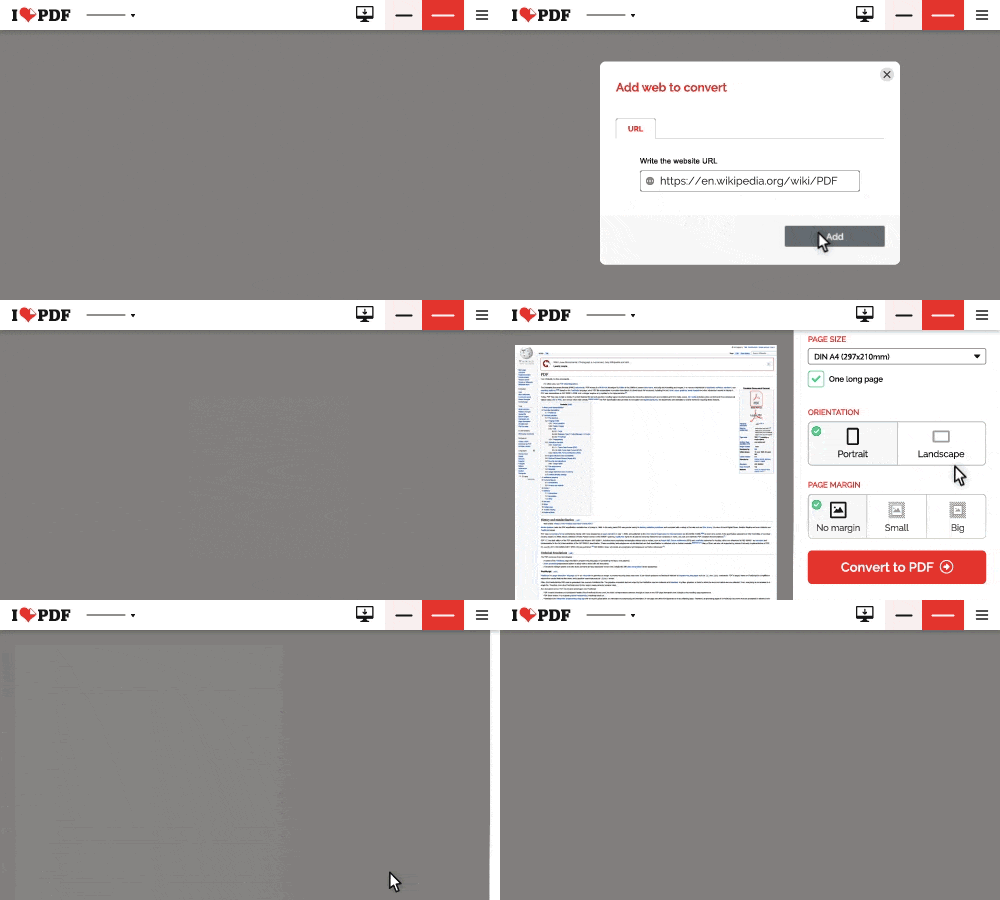
Which settings can you adjust when converting a webpage to PDF?
You can adjust 4 formatting settings for free: screen size, page size, orientation, and page margin. Together, they give you a clean, professional PDF with the exact layout you need.
The HTML to PDF tool also lets you try ad blocking and overlay popup removal for a distraction-free PDF. These features remove any unwanted interruptions that block the content of the webpage.
What can you do with a webpage after saving it as a PDF?
Once your webpage is a PDF, you can summarize it, translate it, edit it, compress it, or protect it, all with iLovePDF tools that work on the file you just downloaded.
Key benefits include compressing file sizes for easier storage and sharing, helping collaboration through annotations and editing, ensuring document security with password protection, and offering versatile conversion options to various formats.
Saved a long report or research paper? The AI Summarizer gives you its key points and lets you ask questions about the document in a chat. Found a useful article in another language? Translate PDF translates it so you can read it in yours. You'll find both tools in the PDF Intelligence section of the menu.
Where can you use iLovePDF tools?
Effortlessly work with your documents using our versatile PDF and image tools, available on Web, Desktop, and Mobile.
Our Web platform provides a user-friendly experience, allowing you to convert website URLs to PDFs and perform various PDF tasks right from your browser.
For comprehensive functionality offline, the Desktop App is available for Windows PC and Mac, and the Mobile App ensures seamless document management anytime, anywhere by letting you take the tools with you.

FAQs
1. Why convert webpages to PDF in 2026?
Saving webpages as PDFs helps preserve important information before links break or content updates. It's essential for students, professionals, and researchers who need reliable offline access
2. How do I turn a link into a PDF?
Paste the URL into the HTML to PDF tool, choose your settings, and click Convert to PDF. That's it.
3. Is iLovePDF free?
Yes. You can convert links to PDF for free, including all formatting settings. Premium gives you higher limits and faster processing, and you can create a free account to get started.
4. Can I remove ads and pop-ups when converting a webpage to PDF?
Yes. The Web to PDF tool includes ad-blocking and popup removal options to create distraction-free PDFs.
5. How secure is iLovePDF for saving webpages as PDFs?
Your files are protected with end-to-end encryption and automatically deleted from our servers after 2 hours. iLovePDF is ISO/IEC 27001 certified, and all our servers are secured under European legislation.
6. Can I convert a link to PDF on my phone?
Yes — use the iLovePDF mobile app on iOS or Android to convert webpages on the go.
7. Does iLovePDF work offline?
Yes. Install iLovePDF Desktop to convert, edit, or annotate PDF files without internet access.
8. Can I convert multiple webpages into one PDF?
Yes. Convert each webpage to PDF, then combine them into one file with Merge PDF.
9. Does iLovePDF work in all regions?
Yes. iLovePDF is available worldwide in many languages, including English, Spanish, Portuguese, and Swahili, our most recent addition.
10. How can I stay updated with iLovePDF features in 2026?
Visit the iLovePDF blog or follow iLovePDF on social channels for updates, productivity tips, and new PDF features.
11. Can I summarize or translate a webpage I saved as a PDF?
Yes. Open the PDF in the AI Summarizer to get its key points and ask questions about it, or use Translate PDF to read it in another language.
В полной безопасности
- Независимо от того, какой инструмент вы используете, мы предоставляем пользователям сквозное шифрование, чтобы обеспечить максимальную защиту от кражи или перехвата ваших документов.
- Любой документ, загруженный в нашу систему, автоматически удаляется через 2 часа, чтобы предотвратить несанкционированный доступ третьих лиц.
- Все наши серверы защищены и находятся под юрисдикцией европейского законодательства, одного из самых требовательных в мире.


