How to edit PDF files online
Add and edit text, images, and shapes in your PDF documents with this easy guide
People from all across the globe use PDF (Portable Document Format) in their daily work for its viewing, sharing and storage capabilities. That's why there are loads of useful online tools out there to convert, merge, compress, and split your PDF files.
One tool that has caught the attention of document users worldwide is the Edit PDF tool. This tool allows you edit PDFs in seconds by editing existing text, annotating, and adding new content to the original file.
This post will show you how to edit PDF files using iLovePDF's PDF Editor (see steps below). With this tool, you can:
- Edit existing text
- Add text
- Import images or photos
- Insert shapes, emojis and symbols
- Freehand draw and annotate
Key takeaways
- Edit a PDF online in 5 steps with iLovePDF's Edit PDF tool, right in your browser.
- Use Content Editor mode to change existing text while keeping its original font, size, and color.
- Add text, images, shapes, freehand drawings, and annotations, and arrange them by layers.
- Save your preferred editing mode as a default in your tool settings and use it in Workflows.
- Check every change against your original file with Compare PDF.
When should you use a PDF Editor?
Use a PDF editor whenever you need to change, mark up, or add to a PDF without going back to the original source file. It saves you a round trip to Word or another app, which makes it ideal for team reviews, grading, and quick corrections. For example, you can use it to:
How can a PDF editor help your team collaborate?
When sharing ideas from a PDF, you might need to draw attention to certain parts of the text for discussion in your next meeting. With an Edit PDF tool, you can handwrite comments or attach photos for reference straight away without the need to convert your file back to Office format first.
How can teachers use a PDF editor to review assignments?
Need to do a quick markup of a student's essay? With this neat tool you can write grades by hand with a friendly "Nice work!", draw a smiley face or insert a diagram image in just a few clicks.
How do you edit a PDF file online?
You can edit a PDF online in 5 steps, right in your browser and with nothing to install. Here's how:
- Go to the Edit PDF tool.
- Upload the PDF file you want to edit.
- Use the tools in the top toolbar to add text, images, shapes, and annotations. To change the text that is already in your PDF, switch to Content Editor mode.
- Click the Edit PDF button to process your file.
- Click Download PDF to download your edited file. You can also save your document to Google Drive or Dropbox.
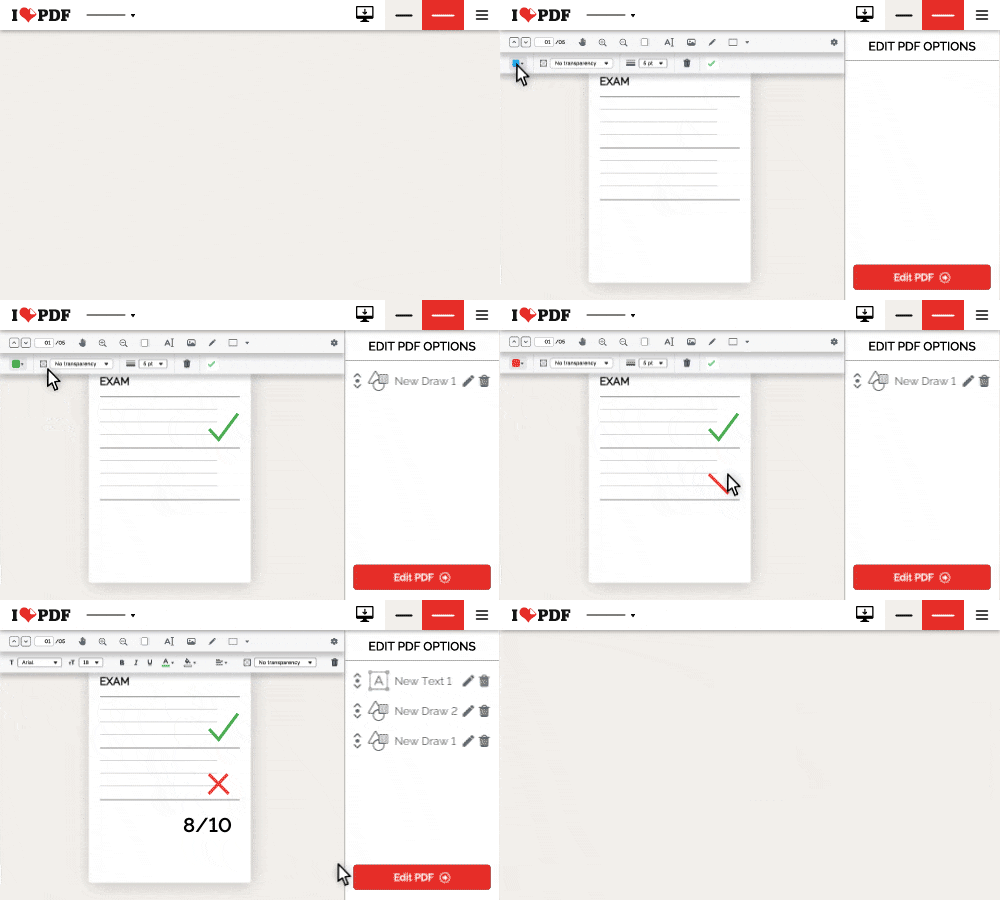
What features does iLovePDF's PDF editor include?
iLovePDF's Edit PDF tool brings every editing feature you need into one browser window. You can start for free, and Premium gives you higher limits and faster processing. With the editor, you can:
- Edit existing text with Content Editor: Switch to Content Editor mode to change the text already in your PDF while keeping its original formatting, or adjust its font, size, color, and style.
- Add text: Add comments on any page and customize its format. Move, resize and change font style and color.
- Insert images: Upload and insert images and photos, resize, rotate, and place them wherever you need them in your document.
- Draw text and illustrations: Draw freely and hand-write text on your document using different pencil colors and thickness.
- Add objects and shapes: Add lines, rectangles and ellipses and customize their fill color, border, size or transparency. Rotate and resize images as you wish.
- Organize by layers: Add your elements and organize them by layers. Decide the order in which you want your elements to be visible and rearrange elements to avoid unwanted overlays.
- Edit with a user-friendly interface: Work in style with iLovePDF's simple, modern and intuitive interface, designed for an optimized editing experience!
- Navigate with ease: View, zoom, move and scroll through individuals pages in your document using straightforward navigation tools.
- Jump ahead with keyboard shortcuts: Get tasks done faster using keyboard shortcuts to copy (Ctrl + C), paste (Ctrl + V) or delete (Delete) items.
- Save your favorite settings: Set your preferred editing mode, including Content Editor, as the default in your tool settings, and use it inside Workflows to repeat the same process in one go.
- Place every element exactly where you want it: Move, resize, and align text, images, and shapes precisely on the page.
What can you do with your PDF after editing it?
After editing, you can keep working on the same file by choosing your next tool right from the results page, with no need to download and upload it again. The most useful next steps are:
- Compare PDF to check every change against your original file side by side.
- Compress PDF to reduce the file size before you share it.
- Protect PDF to add a password to your edited document.
- Workflows to save a sequence of tools you use often and run it in one go.
Can you edit PDFs with the iLovePDF Desktop app?
Yes. The iLovePDF Desktop app for Windows and Mac includes Edit PDF, so you can edit documents right on your computer. You can select several elements at once with Ctrl or Cmd to cut, copy, paste, move, or delete them, move objects pixel by pixel with the arrow keys, add up to 15 images at a time, change the color of freehand drawings after you draw them, and add blank pages from the left panel. On Windows, the Content Editor also lets you move, remove, and edit the existing content of your PDF.
How can you suggest a new feature for iLovePDF?
iLovePDF's Editor is accessible to everyone, with a user-friendly interface providing you with a smooth editing experience.
All of iLovePDF's tools have been made with your document needs in mind. So, if you have any ideas for more tools and features, please write to us. Whatever it may be, we'd love to hear from you.
Check out the post "Discover the digital notepad template" to explore some of the latest features of iLovePDF.
FAQs
1. Can I edit the existing text in a PDF?
Yes. Open Edit PDF and switch to Content Editor mode to change the text already in your document while keeping its original formatting.
2. Is iLovePDF's PDF editor free?
Yes, you can edit PDFs for free. Premium gives you higher limits and faster processing, and you can create a free account to get started.
3. Can I add images and shapes to a PDF?
Yes. Upload images or photos, then resize, rotate, and place them anywhere on the page. You can also add lines, rectangles, and ellipses and customize their color, border, and transparency.
4. How do I check what changed after editing a PDF?
Use Compare PDF to view your edited file next to the original, with the differences highlighted.
5. Can I edit a PDF on Windows or Mac?
Yes. The iLovePDF Desktop app includes Edit PDF for Windows and Mac. On Windows, the Content Editor also lets you move, remove, and edit existing content.

हमारे साथ सुरक्षित है
- चाहे आप किसी भी उपकरण का उपयोग कर रहे हों, हम आपके दस्तावेज़ों की चोरी या उनमें हेरफेर होने के खिलाफ उच्चतम सुरक्षा सुनिश्चित करने के लिए एंड-टू-एंड एन्क्रिप्शन का उपयोग करते हैं।
- हमारे सिस्टम पर अपलोड किए गए किसी भी दस्तावेज़ को 2 घंटे के बाद स्वचालित रूप से हटा दिया जाता है ताकि कोई भी अनधिकृत तीसरे पक्ष उसे एक्सेस न कर सकें।
- हमारे सभी सर्वर यूरोपीय कानून के तहत सुरक्षित हैं, जो दुनिया के सबसे प्रतिबंधात्मक कानूनों में से एक है।


