Connect iLovePDF to Claude and other AI assistants with the iLovePDF MCP
Ask your AI assistant to compress, merge, convert, or OCR your files, and let iLovePDF do the PDF work
Your AI assistant can read a PDF, summarize it, and tell you what's inside. But ask it to make that PDF smaller, merge it with two others, or turn a scan into searchable text, and it usually hits a wall. It can explain how to do it. It can't actually do it.
The iLovePDF MCP changes that. It connects iLovePDF's tools to Claude, Cursor, and other AI assistants that support MCP, so you can describe what you need in plain language and get a finished file back.
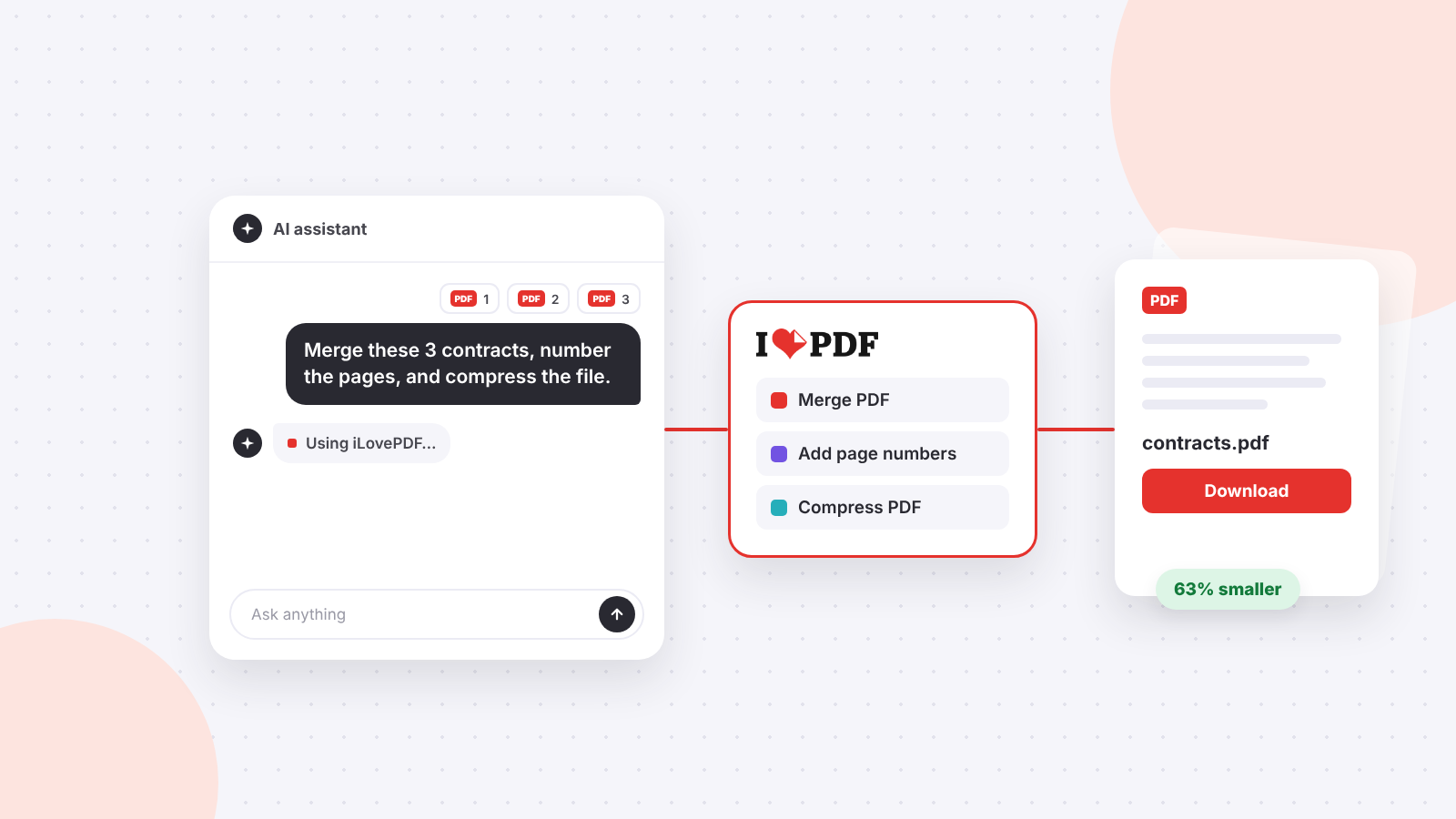
Here's how it works, the two ways to connect it, and how your files are handled along the way.
- Key takeaways
- What is the iLovePDF MCP?
- What you can do with the iLovePDF MCP
- Two ways to connect iLovePDF to your AI assistant
- How to connect the hosted iLovePDF connector
- How to set up the local iLovePDF MCP server
- How it works behind the scenes
- Real ways teams use the iLovePDF MCP
- How your files are handled
- Using ChatGPT?
- One connection, PDF tools in every AI assistant
Key takeaways
- The iLovePDF MCP gives AI assistants that support MCP direct access to iLovePDF's PDF tools.
- Your assistant plans the task, and iLovePDF does the real processing, so you get an actual file, not just instructions.
- There are two ways to connect: a hosted connector you add with a URL and your iLovePDF account, or an open source local server for developers and batch work.
- The hosted connector includes 10 tools, including PDF to Markdown for preparing documents for AI.
- One request can chain several tools, like converting, merging, numbering, and compressing a set of files.
- When you upload through the iLovePDF window in the chat, your file goes straight to iLovePDF and your assistant gets only a reference to it. Download links expire after 2 hours.
What is the iLovePDF MCP?
MCP stands for Model Context Protocol, an open standard that lets AI assistants use tools from other services. A company builds one MCP server, and every assistant that speaks MCP can use it.
The iLovePDF MCP is our version of that. It makes iLovePDF's document tools available inside the AI assistant you already work with.
The idea is simple: the model is the planner, and iLovePDF is the engine. A language model can't compress or OCR a PDF on its own. With iLovePDF connected, it can call the right tool, in the right order, with the right settings, and hand you the result.
Does the iLovePDF MCP only work with Claude? No.
It works with any assistant or app that supports MCP. That includes Claude, Cursor, and other MCP clients, plus the custom agents your team builds. If you switch assistants later, iLovePDF comes with you.
What you can do with the iLovePDF MCP
The hosted connector includes 10 tools. Here's what they cover, with requests you can copy and try.
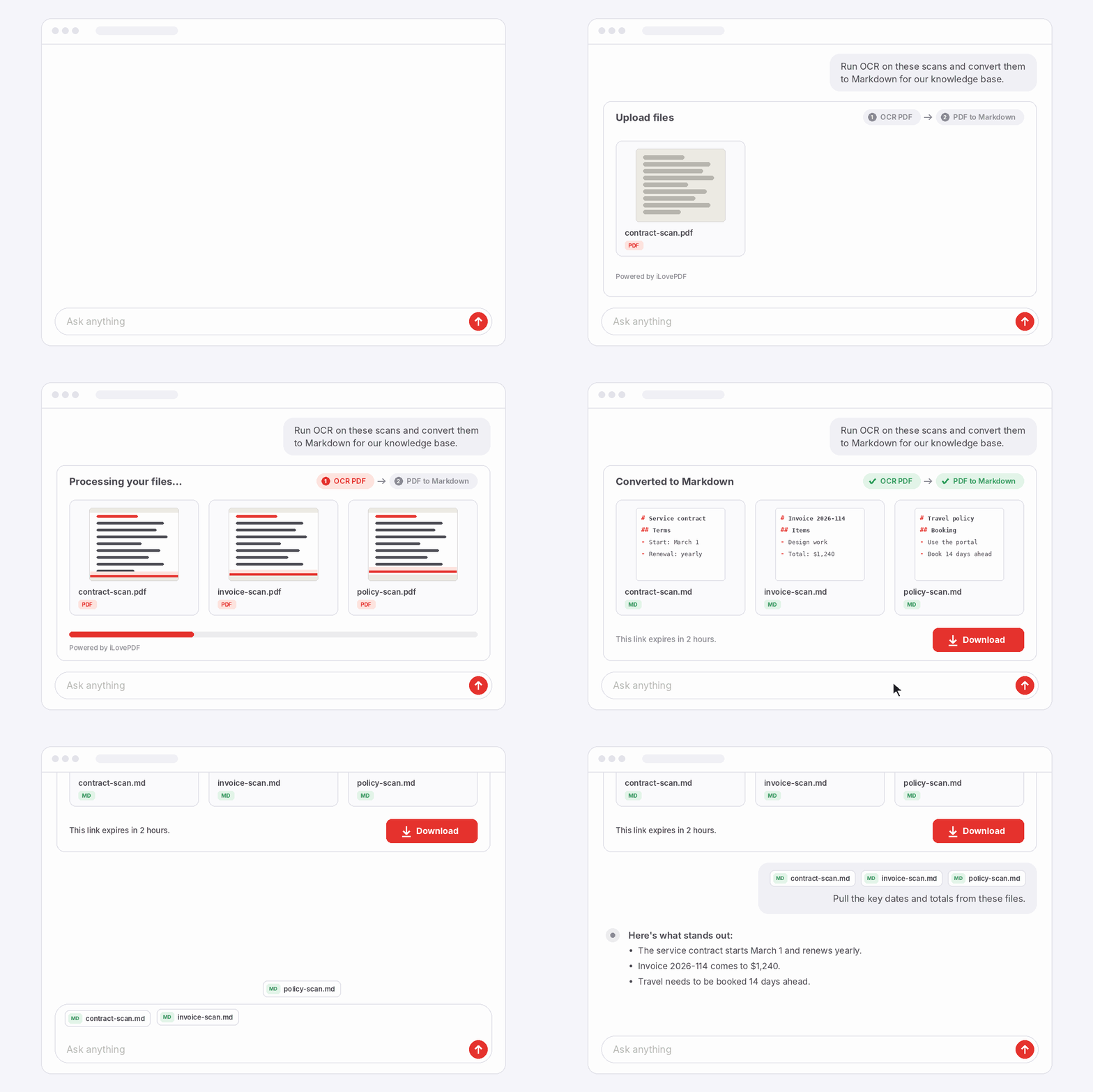
Prepare documents for AI with PDF to Markdown
Markdown is the format AI tools work with best. Converting a PDF to Markdown gives you clean, structured text that's ready for a knowledge base, a summary, or a retrieval pipeline. Combine it with OCR and even scanned files become usable text.
Try asking: "Run OCR on these scans and convert them to Markdown for our knowledge base."
Make files smaller and easier to share
Large files get bounced by inboxes and rejected by upload portals. Your assistant can compress a PDF and show you how much space you saved.
Try asking: "Compress this report so I can send it by email."
Combine, split, and organize documents
You can merge several PDFs into one in the order you choose, split a long file by page range, or add page numbers so a long document is easier to follow. When a task creates several files, like splitting a PDF, you get them in one ZIP.
Try asking: "Merge these three contracts into one PDF, with the signed cover page first."
Convert files to and from PDF
Turn Word, Excel, or PowerPoint files into a PDF that looks the same on every screen. Convert images (JPG, PNG, or TIFF) into a PDF, or turn PDF pages into JPG images.
Try asking: "Turn this PowerPoint into a PDF and compress it for email."
Make scanned documents searchable
A scan looks like text but behaves like a picture. OCR for scanned PDFs recognizes the words on the page, so you can search, select, and copy them.
Try asking: "Make this scanned contract searchable."
Add the finishing touches
Mark a document as a draft or confidential with a text or image watermark, and add page numbers before you send it out.
Try asking: "Add a 'Confidential' watermark to this contract and number the pages."
Two ways to connect iLovePDF to your AI assistant
There are two versions of the iLovePDF MCP. They share the same idea but suit different people.
The hosted connector: for most people and teams
The hosted connector runs on iLovePDF's servers. There's nothing to install, and you connect it with a single URL.
Do you need a developer API key to use the hosted connector? No. You sign in with your iLovePDF account and authorize the connection. You can revoke it anytime from your connected apps.
In assistants that support MCP Apps, like Claude, iLovePDF shows its own interface right in the conversation. You can select your files, reorder them, adjust settings, follow the progress, and download the result, all without leaving the chat.
It includes these 10 tools:
- Compress PDF
- Merge PDF
- Split PDF
- PDF to JPG
- Image to PDF
- Office to PDF
- Add watermark
- Add page numbers
- OCR PDF
- PDF to Markdown
You can start with a free iLovePDF account, which includes a daily number of free tasks. Premium gives you unlimited tasks.
The local server: for developers and folder-scale work
The local iLovePDF MCP server is open source under the MIT license and runs on your own computer. It's built for developers, power users, and anyone who wants their assistant to work directly with files in their folders.
Instead of uploading files to a chat, you point your assistant at a folder. It picks up the files, sends them to iLovePDF for processing, and saves the results right back. That makes requests like "Make every scan in my Invoices folder searchable" possible in one step.
The local server currently includes 9 tools: Compress PDF, Merge PDF, Split PDF, PDF to JPG, Image to PDF, Office to PDF, Add watermark, Add page numbers, and OCR PDF. It works with clients like Claude Desktop, Cursor, and any other client that supports local (stdio) MCP servers.
It connects with your own iLoveAPI public key, so usage runs on your own project. If you're building PDF steps into your own product, our REST API for developers is the natural next step from there.
How to connect the hosted iLovePDF connector
Setup takes about a minute.
- Copy the connector URL: https://mcp.ilovepdf.com/mcp
- Open your assistant's connector or MCP settings and add it as a new remote server (in Claude, this is a custom connector).
- Sign in with your iLovePDF account and authorize the connection.
- Ask for what you need, for example: "Compress this PDF with iLovePDF."
- Add your files in the iLovePDF interface that appears in the chat, so they go straight to iLovePDF. Then click the tool button, or just type “Process it” in the chat.
- Download the result. The download link stays active for 2 hours.
If your assistant doesn't show the iLovePDF interface, you can upload files on the iLovePDF MCP upload page and paste the result into your request. You can also share a public file link instead.
Using Claude on a Team or Enterprise plan? An admin may need to allow mcp.ilovepdf.com in the workspace's network settings before the connector can receive files.
How to set up the local iLovePDF MCP server
If you're comfortable editing a configuration file, this takes a few minutes.
- Install Node.js 18 or later on your computer.
- Get an iLoveAPI public key by creating a project on iloveapi.com.
- Add the iLovePDF MCP server to your client's configuration, for example in Claude Desktop or Cursor, using the npx command and your public key.
- Choose your working folder. File access is limited to the working directory you set and any extra folders you allow. Everything else stays off limits.
- Restart your client and ask it to work with a file in that folder.
You'll find ready-to-copy configuration examples and all the optional settings in the iLovePDF MCP guide on GitHub.
How it works behind the scenes
Here's what happens when you make a request:
- You ask in plain language, like "Merge these three files and compress the result."
- Your assistant reads the iLovePDF tool descriptions and decides which tools to use, in what order, and with which settings.
- Your assistant asks you to approve the tool call (most assistants do this by default).
- iLovePDF processes your file in the cloud and returns the result.
- You download the file, and you can keep going: "Now add page numbers."
PDFs can be large, and pushing them through a chat is slow. That’s why the hosted connector uploads your file straight to iLovePDF and passes only a short-lived session reference to your assistant. Your assistant uses that reference to run the tool you asked for, while the file itself stays with iLovePDF. The local server goes one step further and reads and writes files directly in your folders.
Real ways teams use the iLovePDF MCP
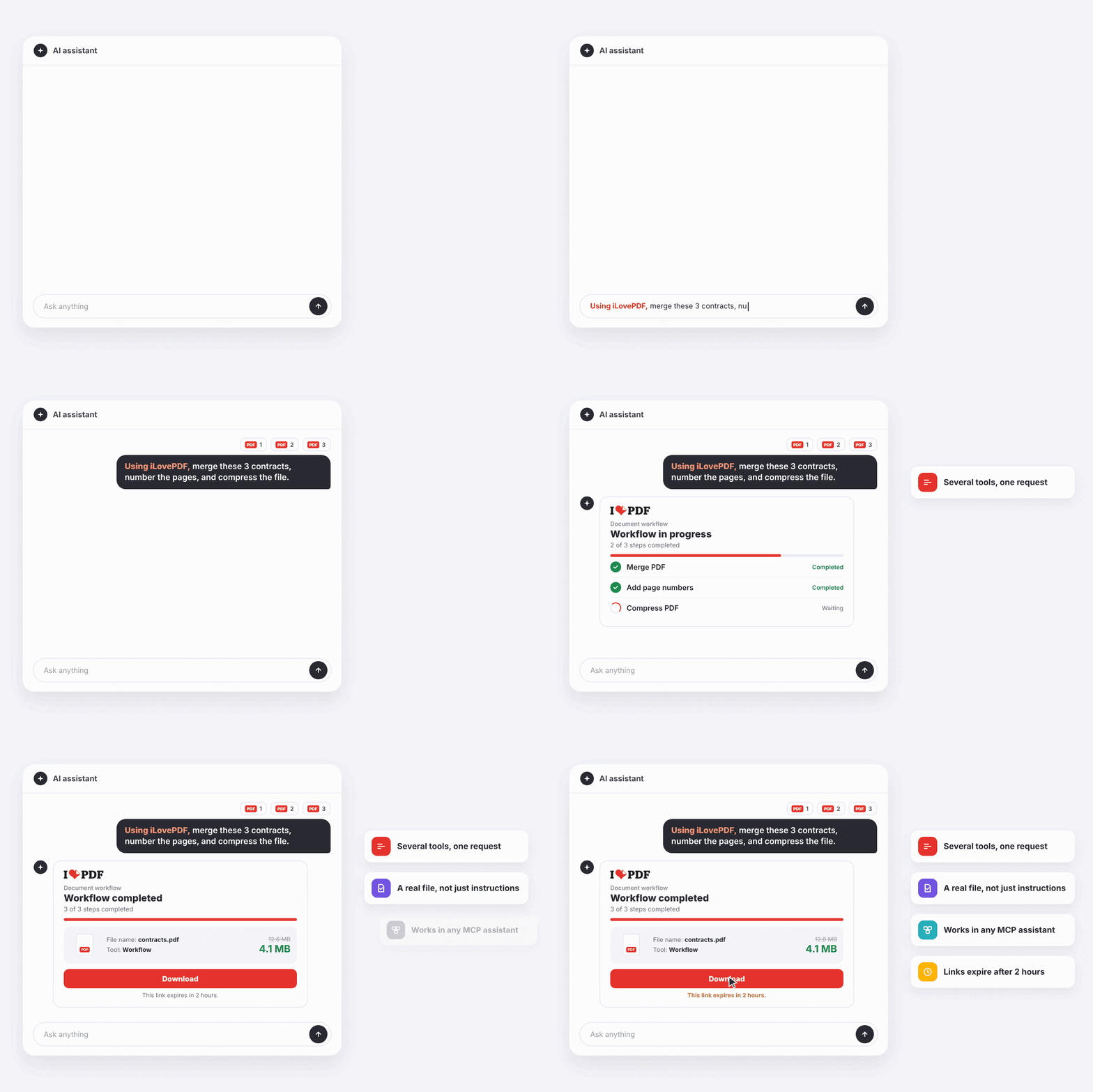
The iLovePDF MCP is at its best with tasks that repeat, involve several files, or need a few steps in a row. These are the jobs you'd otherwise do file by file.
Legal teams preparing a filing. "Convert these Word exhibits to PDF, merge them in order, number the pages, and compress the file to under 10 MB for the court portal." Four tools, one request.
Finance teams closing the month. With the local server: "Make every scan in Invoices/October searchable, then merge them into one file per supplier."
Sales and marketing sending proposals. "Turn this PowerPoint into a PDF, merge it with the price sheet, and compress it for email." The same chat that helped write the proposal sends out the final file.
Teachers building course packs. "Combine these readings, add page numbers, and get the file under the upload limit."
Developers and AI teams. "Convert report.docx to PDF and save it to /dist," or "OCR these scanned PDFs and convert them to Markdown for our knowledge base." No API code to write.
IT and workspace admins. Add one connector for the whole team, so everyone gets PDF tools inside the AI assistant your company already approved. If you're rolling iLovePDF out across a company, iLovePDF Business covers team plans and central management.
This is where iLovePDF fits naturally: trusted by international enterprises for document management, PDF processing, and e-signatures, and used by millions of people every day for a quick fix.
How your files are handled
What happens to your file depends on how you share it. There are two routes, and you choose which one to take.
Are your files sent to iLovePDF for processing? Yes. When you use the iLovePDF interface, the upload page, or the local server, your files go directly to iLovePDF for processing.
Does the hosted connector store your documents? No. It keeps only short-lived session and task details, not the content of your files. Download links expire after 2 hours.
A few more things worth knowing:
When you add a file directly to an AI chat, the AI assistant opens it and works with its full content. That file is then handled under the AI provider’s own data policies, which can cover how long your conversations are stored and whether they help improve the provider’s models.
When you use the iLovePDF upload window inside the chat, your file goes straight to iLovePDF through our secure API. The AI assistant gets a reference to the file, so it can run the tool you asked for while the file itself stays with iLovePDF.
We use your file for one purpose: completing your task. Your files stay private, stay out of AI training, and stay yours.
The same route applies to the iLovePDF MCP upload page and the local server. In both cases, the file goes straight to iLovePDF.
The local server only touches the folders you choose. File access is blocked by default outside your working directory and any extra folders you allow.
Your connection, your control. You can disconnect the hosted connector at any time, and the local server runs on your own key.
Only process files you're allowed to share. And keep result links private, just as you would with any document link.
You can read more about how we protect your documents in our security documentation.
Using ChatGPT?
If ChatGPT is your main assistant, the iLovePDF plugin is the quickest route, with nothing to set up beyond connecting it. Here's how iLovePDF works inside ChatGPT.
One connection, PDF tools in every AI assistant
In summary: the iLovePDF MCP lets your AI assistant do real PDF work, not just describe it. Use the hosted connector to add iLovePDF to Claude and other assistants with a URL and your iLovePDF account, or run the open source local server to work directly with files in your folders.
The practical takeaway is simple. Next time a document task interrupts your work, don't switch tabs. Ask your AI, and let iLovePDF do the PDF work.
Prefer working in the browser? All of our tools are still one click away on iLovePDF.com.

Connect iLovePDF to your AI assistant once, and handle your next PDF task with a single message
Create free accountSafe in our hands
- No matter which tool you are using, we use end-to-end encryption to ensure the highest protection against theft or interception of your documents.
- Any document uploaded to our system is automatically deleted after 2 hours to prevent any unauthorized third-party access.
- All our servers are secured under European legislation, one of the most restrictive in the world.


