What is Bates numbering and how do you add it to a PDF?
A plain-language guide to Bates numbers for legal teams, plus the steps to number your PDFs with iLovePDF
What is Bates numbering? Bates numbering gives every page in a set of legal documents its own unique ID, usually a short prefix followed by a number, like ACME000123. The numbers run in one continuous sequence across every file, so anyone can find and cite an exact page. You can add Bates-style numbers to a PDF with the iLovePDF Page numbers tool by setting a custom prefix and a starting number.
If you've ever been handed a stack of discovery documents, you've seen them: small codes like SMITH000245 in the corner of every page. They look technical, but the idea behind them is simple.
This guide explains what Bates numbers are, why legal teams rely on them, how they differ from normal page numbers, and how to add Bates-style numbering to your own PDFs.
Key takeaways
- A Bates number is a unique ID stamped on every page of a document set, usually a prefix plus a number.
- The numbering continues across every document in a production. It doesn't restart in each file.
- Legal teams use Bates numbers to cite, track, and find exact pages in discovery and litigation.
- You can add Bates-style numbers with the iLovePDF Page numbers tool, using custom text and a starting number.
- Merging your files first with Merge PDF keeps the whole set in one continuous sequence.
- Page numbers doesn't add leading zeros, so check your format requirements before you rely on it for a formal production.
What is Bates numbering, in plain language?
Bates numbers are page-level IDs for legal and business documents. Each page in a document set gets one, and no two pages share the same number.
A typical Bates number has two parts. Take ACME000482:
- The prefix (ACME) identifies who produced the documents, the client, or the case.
- The number (000482) shows where that page sits in the full set. Here, it's page 482 of the production.
Some teams also add a suffix, like a volume or confidentiality code, after the number.
Where the name comes from
The name comes from Edwin G. Bates, an American inventor who patented a mechanical numbering stamp in the late 1800s. Office workers pressed it onto each sheet of paper, and the number moved forward automatically.
Today the stamp is digital, but the name stuck.
What is Bates stamping?
Bates stamping is another name for the same thing. Bates numbering, Bates stamping, and Bates labeling all describe adding a unique, sequential ID to every page of a document set. Today, adding a Bates stamp to a PDF means placing that ID as text on each page, usually in the footer.
Can two pages share the same Bates number? No. Each page gets its own number, and that's what makes the system useful.
Why legal teams use Bates numbering
In a lawsuit, each side shares documents with the other during discovery, the stage where evidence is exchanged before trial. A single production can include thousands of pages of emails, contracts, invoices, and scans.
Bates numbers keep that volume manageable in four practical ways.
Precise references. "See ACME000482" in a deposition, a brief, or a court filing sends everyone to the same page. Nobody has to describe "the third page of the second email in the March folder."
A clear record of what was shared. A range like ACME000001 to ACME002500 shows exactly which pages were produced, and in what order.
Missing pages stand out. If page ACME000611 jumps straight to ACME000613, someone knows to look for the gap.
Faster retrieval. When a page is cited months later, you can find it by its number instead of searching through files.
The same approach is also used outside the courtroom, for example in due diligence, regulatory submissions, insurance claims, and medical records requests.
Bates numbering vs normal page numbers
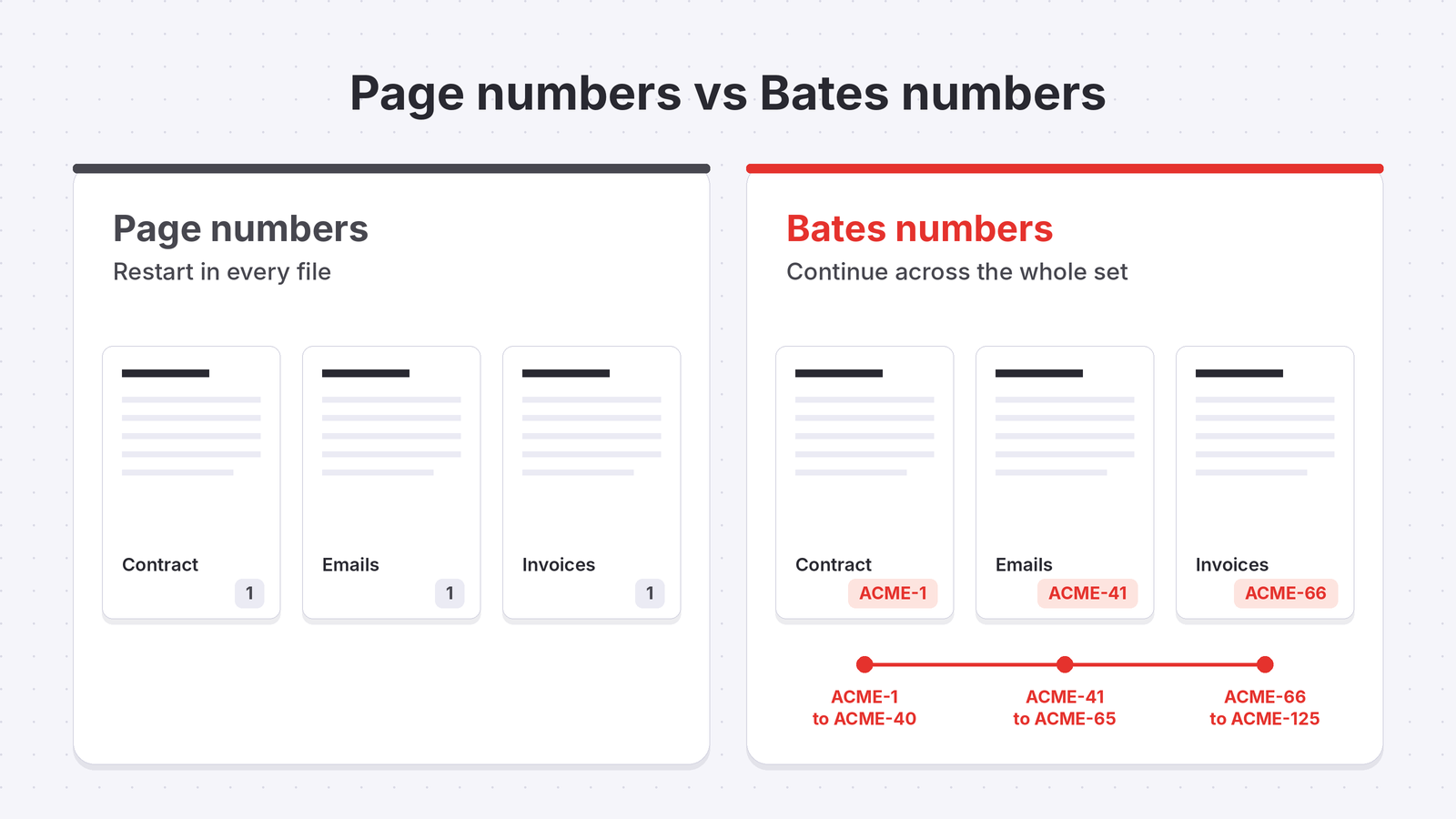
Both put a number on every page, but they answer different questions.
Normal page numbers start again at 1 in every file. They tell you where a page sits inside one document.
Bates numbers continue across the whole document set. They tell you where a page sits in the entire production, and which production it belongs to.
Here's a simple example. Say you're sharing three files: a 40-page contract, a 25-page email thread, and a 60-page set of invoices.
- With normal page numbers, you'd have three different "page 1"s.
- With Bates numbers, the contract runs from ACME000001 to ACME000040, the emails from ACME000041 to ACME000065, and the invoices from ACME000066 to ACME000125.
In summary: normal page numbers help someone read one document, while Bates numbers help everyone track a whole set of documents.
How to add Bates-style numbers to a PDF with iLovePDF
The iLovePDF Page numbers tool lets you add your own text before each number and choose the number to start from. That covers the core of Bates numbering: a consistent prefix and one continuous sequence.
It works in your browser, so there's nothing to install.
Step 1: Put your documents in order and merge them
Bates numbering only works if the order is right, so set it before you add any numbers.
- Open Merge PDF.
- Click Select PDF files and add every document in the set.
- Drag the files into the order you want them numbered.
- Click Merge PDF.
- Download your merged file.
If any pages include privileged or confidential details, it's a good idea to hide sensitive information with Redact PDF before you number and share the file.
Step 2: Add your prefix and numbers
- Open the Page numbers tool.
- Click Select PDF file and upload your merged PDF.
- Under Page mode, keep Single page.
- Under Position, click the bottom-right square. That's where Bates numbers usually go.
- Under Pages, set First number to 1, or to the next number in your series.
- Under Text, choose Custom and type your prefix followed by {n}, for example ACME-{n}.
- Under Text format, choose a clear font and size so the number is easy to read.
- Click Add page numbers.
- Download your numbered PDF.
Your pages are now numbered ACME-1, ACME-2, ACME-3, and so on, in one sequence from the first page to the last. For a closer look at every setting, see our guide on how to add page numbers to a PDF.
Adding documents to an existing series
New documents often turn up after the first production. To keep the sequence going, set First number to the number after the last one you used.
If your first production ended at ACME-2500, start the next one at 2501 with the same prefix.
What to check before you rely on it
Does the iLovePDF Page numbers tool add leading zeros? No. It counts 1, 2, 3, so your pages read ACME-1 to ACME-2500 rather than ACME000001 to ACME002500.
For internal reviews, exhibits, and many smaller productions, a prefix plus a continuous number is all you need. If a court order, an ESI protocol (the agreement that sets how electronic documents are exchanged), or opposing counsel requires a fixed-width format, check those rules first. Dedicated Bates software can add the leading zeros for you.
Tips for clean, consistent Bates numbering
A little preparation saves a lot of renumbering later.
- Choose a short, meaningful prefix. A party name, client code, or matter number works well. Keep it the same for the whole production.
- Finalize the order before you number. Once the numbers are on the page, changing the order means starting again.
- Keep a log of your ranges. Note which range went to whom and when, for example ACME-1 to ACME-2500, sent on November 6, 2026.
- Number a copy, not the original. Keep an unnumbered version of every file in case you need to produce it again.
- Think about long-term storage. Productions often need to be kept for years, and PDF/A conversion for long-term archiving helps them open the same way in the future.
FAQ
How to add Bates numbers to PDF online?
Use an online page numbering tool that supports custom text and a starting number. In iLovePDF, merge your files with Merge PDF, then open Page numbers, choose Custom under Text, type a prefix such as ACME-{n}, and set First number. It all runs in your browser, with nothing to install.
How to add Bates numbers to PDF?
You can add them online with a tool like iLovePDF, or with desktop software that has a dedicated Bates feature. Whichever you use, put the documents in order first, keep one prefix for the whole set, and make sure the numbers continue from one file to the next.
What are Bates numbers?
Bates numbers are unique IDs added to every page of a document set, usually a prefix plus a sequential number like ACME000001. Legal teams use them to cite, track, and find specific pages, especially during discovery in a lawsuit.
What is Bates numbering in PDF?
It's the digital version of the original Bates stamp: a unique ID added to each page of a PDF, usually in the footer. The sequence continues across every PDF in the set, so each page can be identified on its own, even after the files are separated.
One number for every page, and no confusion about which one
In summary: Bates numbering gives each page in a document set a unique ID, usually a prefix plus a number, in one continuous sequence. That makes it easy to cite exact pages, prove what was shared, and spot anything missing.
To add Bates-style numbers yourself, merge your documents in the right order, then use Page numbers with custom text and the right starting number. If your production needs a fixed-width format with leading zeros, check the requirements first.
Legal work is a big part of why teams choose iLovePDF. If you missed it, here's what we shared with legal teams at Fenalaw 2026, and if you're comparing options, our framework for evaluating document tools for a legal team can help. iLovePDF is used by individuals for quick fixes and trusted by international enterprises as a document management, PDF, and e-signature platform, and iLovePDF Business adds team plans and central management. Free users can process a set number of tasks per day, and Premium removes those limits.

Number every page of your legal documents in one continuous sequence with iLovePDF Page numbers
Add page numbersSafe in our hands
- No matter which tool you are using, we use end-to-end encryption to ensure the highest protection against theft or interception of your documents.
- Any document uploaded to our system is automatically deleted after 2 hours to prevent any unauthorized third-party access.
- All our servers are secured under European legislation, one of the most restrictive in the world.


